What Is a VCF File? How to Open, Import and Create One
A VCF file is a contact saved as a file. The extension .vcf stands for vCard file: a small text file that holds a name, phone numbers, email addresses and other details in a format every phone and mail program can read. This guide shows what is inside one, how to open and import it on each device, how to create and convert one, and what to do when it does not open.
What is a VCF file?
A .vcf file contains one or more contacts written in the vCard format. It is what your phone sends when you share a contact, what a "Save contact" button on a digital business card downloads, and what contact apps produce when you export an address book. One file can hold a single person or thousands.
The same extension is used in genetics for the Variant Call Format, which stores DNA sequence variations. If your file came from a lab or a sequencing tool, it is that kind and needs bioinformatics software. This guide covers contact files.
What is inside a .vcf file
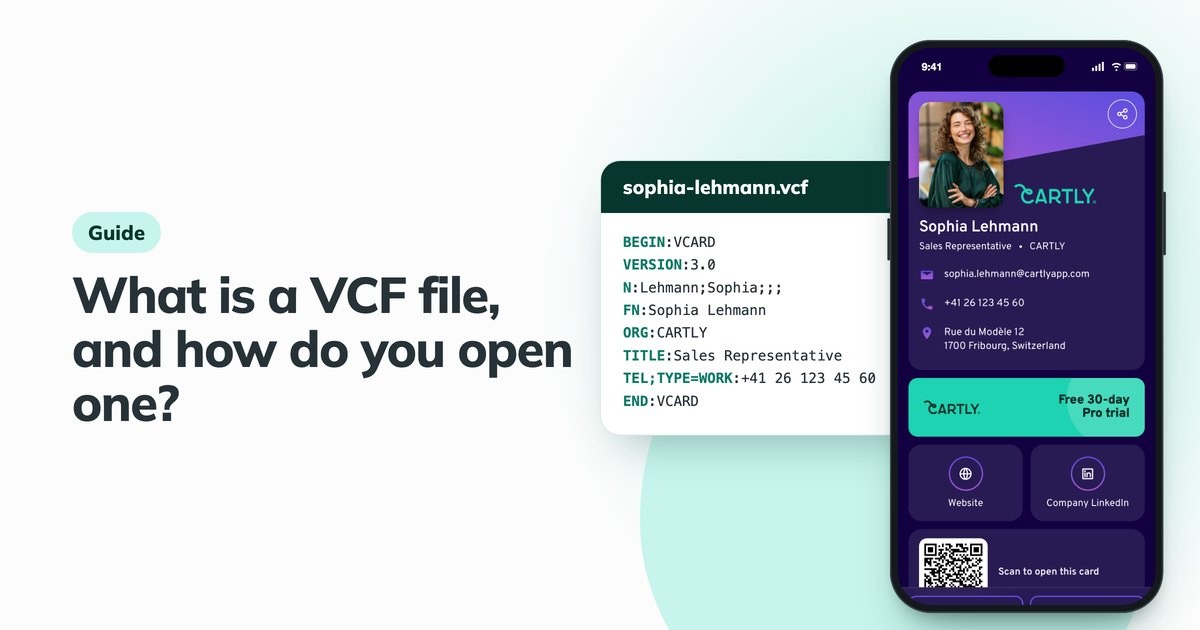
Open a .vcf file in a text editor and you can read it. Each contact starts with BEGIN:VCARD and ends with END:VCARD. In between, each line is one property:
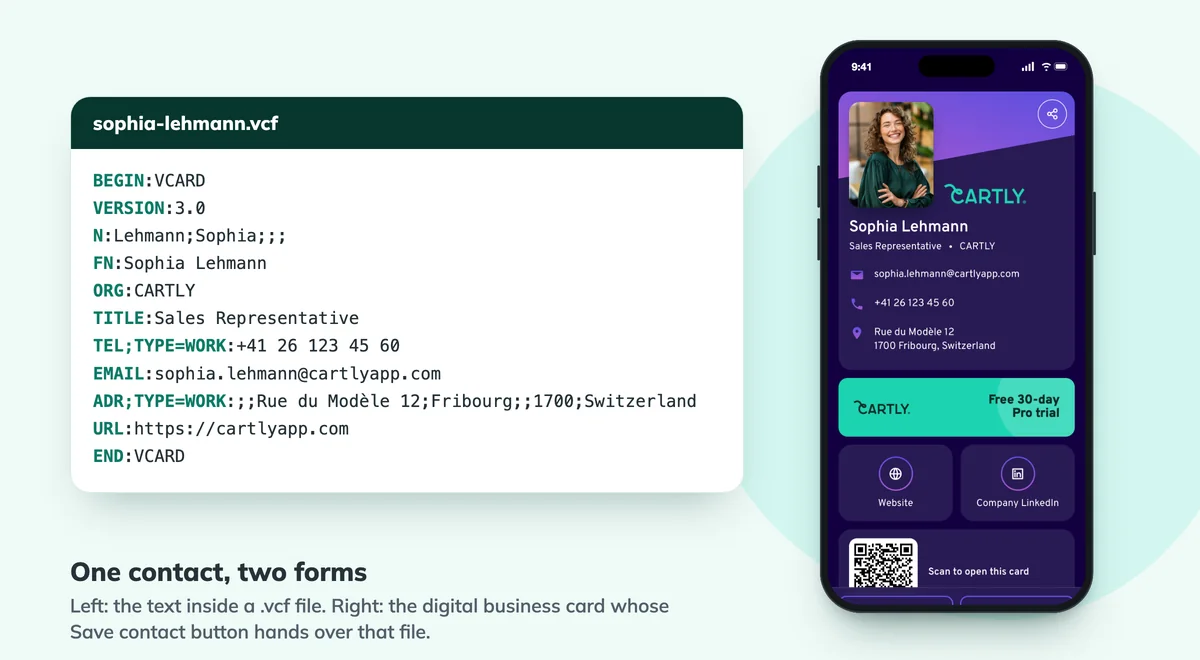
- VERSION: the vCard version, 2.1, 3.0 or 4.0. Version 3.0 is read everywhere.
- N and FN: the name in parts (last; first) and as displayed.
- ORG and TITLE: company and job title.
- TEL, EMAIL, ADR, URL: phone, email, postal address and website. A TYPE such as WORK or CELL labels each one.
- PHOTO: a picture, embedded in the file or given as a link.
How to open a VCF file
On iPhone and iPad
- Tap the .vcf file in Mail, Messages or the Files app.
- The contact opens as a preview. Tap Create New Contact, or Add to Existing Contact to merge it.
- If the file holds several contacts, tap Add All Contacts.
On Android
- Tap the file in your downloads or in the message it came with, and choose Contacts if asked which app to use.
- Pick the account to save to, for example your Google account.
- For a large file, open the Google Contacts app, tap Fix & manage, then Import from file.
In Gmail and Google Contacts
- Go to contacts.google.com and click Import.
- Select the .vcf file and click Import.
The contacts then appear in Gmail and on every phone signed in to that Google account.
In Outlook on Windows
In classic Outlook, double-click the file to open the contact, then click Save & Close. To import it from the menu, click File, Open & Export, Import/Export, and choose Import a VCARD file (.vcf). Classic Outlook reads only the first contact of a file that holds several: import such a file through Google Contacts or iCloud first, or split it. The new Outlook and Outlook on the web import contacts from CSV files, so convert the file first (see below).
On a Mac
Double-click the file. The Contacts app opens and asks whether to add the contact. You can also drag the file onto the Contacts window, or use File, Import.
In iCloud
Sign in to iCloud.com, open Contacts, click the plus button and choose Import Contact. The contacts sync to your iPhone, iPad and Mac.
Without importing anything
To look inside a file before adding it to your contacts, open it with a text editor: Notepad on Windows, TextEdit on a Mac. A file from an unknown sender is worth this ten-second check.
How to create a VCF file
- From an iPhone: open a contact, tap Share Contact and send it to yourself. To export every contact, open the Contacts app, tap Lists, press and hold a list and tap Export.
- From Android or Google Contacts: click Export and choose vCard.
- From a Mac: select the contacts, then File, Export, Export vCard.
- From Outlook: open a contact and choose Save As, vCard, or forward it as a business card.
- From a digital business card: the Save contact button hands your vCard to anyone who opens your card, with your current details.
Our guide How to create a vCard walks through each method.
How to convert a VCF file to CSV or Excel
A CSV file is a table: one row per contact, one column per field. Spreadsheets, CRM systems and mailing tools want that. The reliable way to convert needs no extra software:
- Import the .vcf file into Google Contacts.
- Select the imported contacts, click Export and choose Google CSV or Outlook CSV.
- Open the CSV file in Excel or import it into your CRM.
The same route works in reverse: import a CSV file, export as vCard. Avoid online converters for contact lists you do not own outright: uploading other people's phone numbers to an unknown site is a data-protection problem.
| VCF | CSV | |
|---|---|---|
| Built for | Contacts | Any table |
| Opens in | Phones, contact apps, mail programs | Spreadsheets, CRM systems |
| Photos | Yes | No |
| Field names | Standardized | Differ from tool to tool |
| Best for | Sharing a contact with a person | Moving a list into a system |
When a VCF file does not open
- Only one contact is imported. Classic Outlook reads the first contact only. Import through Google Contacts or iCloud.
- Accents and special characters are garbled. The file was saved in an old encoding, often with vCard 2.1. Open it in a text editor, save it as UTF-8 and import again.
- The file opens as text in the browser. Download it, then open it from your downloads folder with the contacts app.
- Photos are missing. Some programs drop embedded photos on import. The contact details are still complete.
- Nothing happens. Check that the file starts with BEGIN:VCARD. If it does not, it is not a contact file, or the download was cut short.
VCF files and digital business cards
A digital business card uses the same format without the file handling. The person scans your QR code or opens your link, sees your card, and taps Save contact: their phone receives your vCard and adds you to their contacts in one tap. When your number or title changes, you update the card once, and the next person to save it gets the new details.
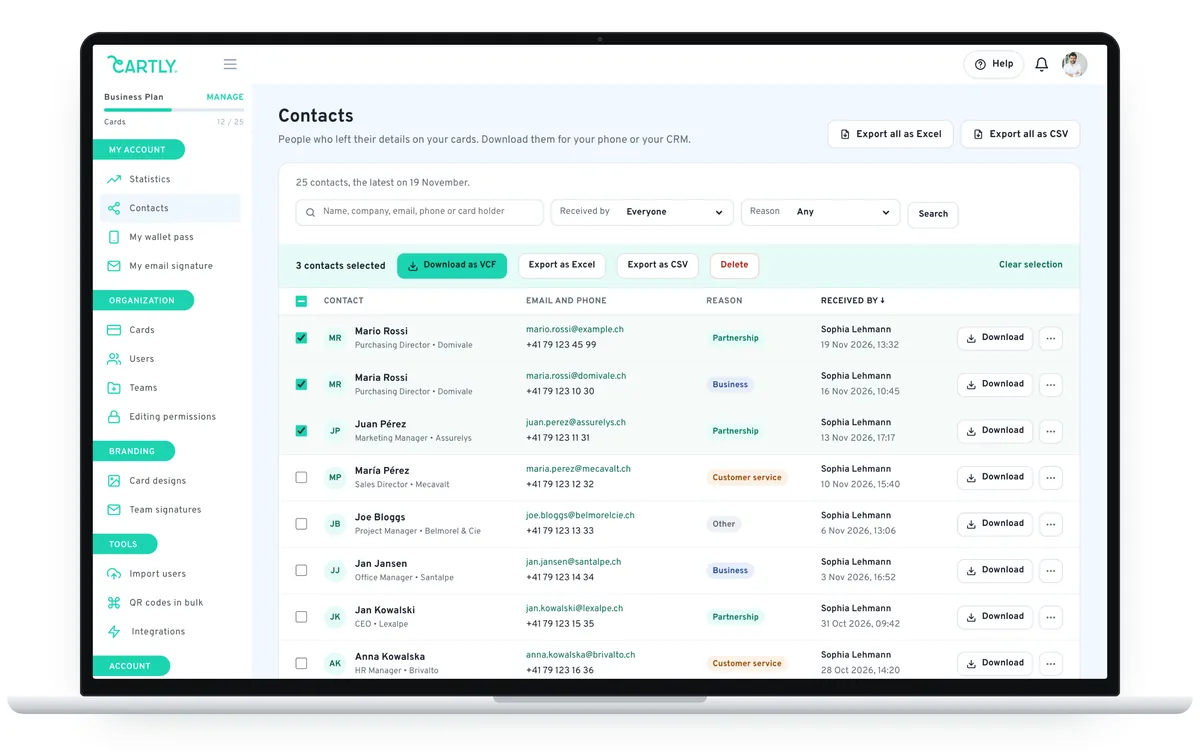
It works in the other direction too. Visitors can leave their own details on your card, and with CARTLY Pro and Business you export the contacts you collect as VCF, CSV or Excel, ready for your phone or your CRM. See contact exchange.
Frequently asked questions
Is a VCF file the same as a vCard?
Yes. vCard is the name of the format, .vcf is the extension of the file that holds it.
Is it safe to open a VCF file?
A .vcf file is plain text and cannot run a program. The risk is the content: a file from an unknown sender may add contacts you do not want, or links you should not follow. Look at it in a text editor first.
Can a VCF file contain more than one contact?
Yes. Contacts follow one another in the file, each between BEGIN:VCARD and END:VCARD. Phones, Google Contacts and iCloud import them all.
Can I edit a VCF file?
Yes, in any text editor: change the value after the colon and save. For more than a quick fix, import the contact, edit it in your contacts app and export it again.
Can I open a VCF file in Excel?
Excel opens it as raw text, one property per row. Convert it to CSV first to get one row per contact.
Want your details saved in one tap, with no file to send? Create your free digital business card: its QR code and link open your card, and the Save contact button delivers your vCard.