How to Create a vCard on iPhone, Android, Outlook and Google Contacts
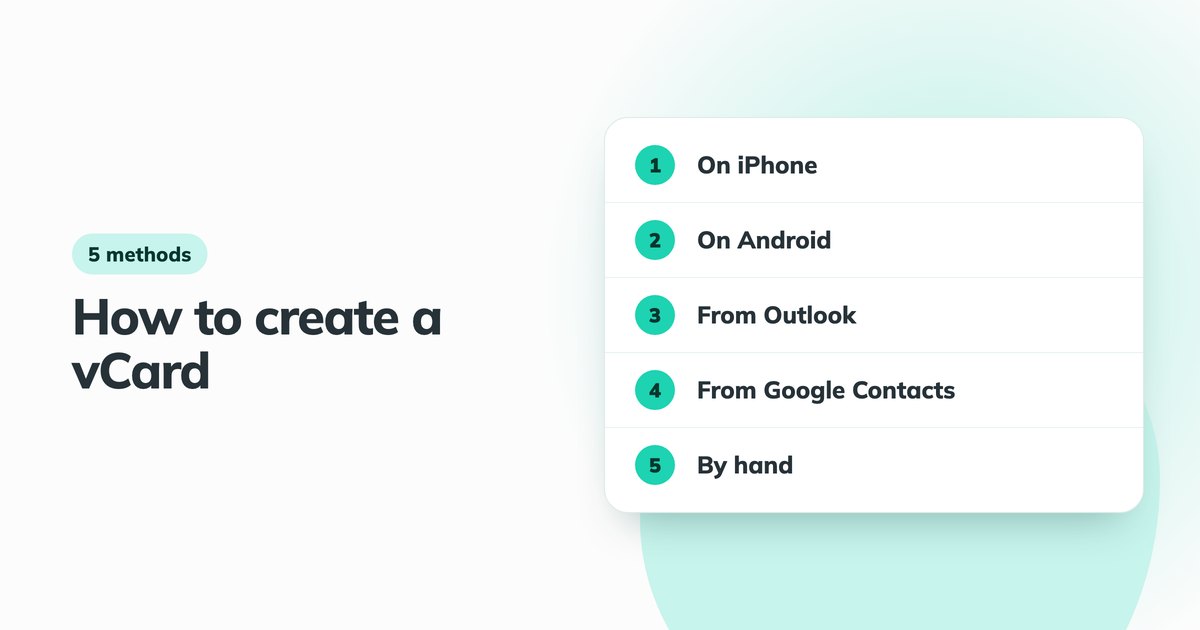
A vCard is a .vcf file that holds your contact details, and every phone and address book can read it. You can create one in a few seconds from your phone's Contacts app, export one from Outlook or Google Contacts, write one by hand, or let a digital business card generate it for each person you meet. This guide covers all five ways, plus the vCard QR code.
1. Create a vCard on iPhone
- Open Contacts (or the Phone app, then Contacts) and tap your own card at the top, or any contact.
- Scroll down and tap Share Contact.
- Choose what to include, then send it by Messages, Mail or AirDrop, or save it to Files. The recipient receives a .vcf file.
iPhone exports vCard 3.0, which every other phone reads.
2. Create a vCard on Android
- Open Contacts and open the contact.
- Tap the menu (three dots) and choose Share. Depending on the phone, the option is called Share, Share as file or Export.
- Pick the app to send it with, or save the .vcf to your files.
To export all your contacts at once: Contacts, then Settings, then Export (or Fix & manage, then Export to file on Google's Contacts app).
3. Export a vCard from Outlook
- Outlook for Windows (classic): open the contact, click File, then Save As, and keep the vCard (.vcf) format. From a new message, you can also use Insert, then Business Card to attach your own.
- Outlook for Mac: drag the contact out of the People view to the desktop; macOS creates a .vcf.
- Outlook on the web and new Outlook: open People, select the contact and use Export or Forward as a contact, depending on the version.
4. Export a vCard from Google Contacts
- Open contacts.google.com.
- Select one or several contacts, or none for all of them.
- Click Export and choose vCard (for iOS Contacts). Google CSV and Outlook CSV are the other options.
This is also the easiest way to convert a CSV to a vCard: import the CSV into Google Contacts, then export as vCard.
5. Write a vCard by hand
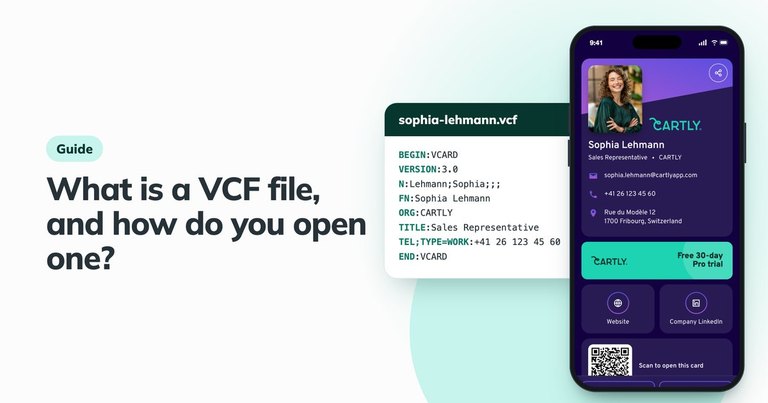
A vCard is plain text. Paste this into a text editor, replace the details, and save the file with the .vcf extension:
BEGIN:VCARD
VERSION:3.0
N:Lehmann;Sophia;;;
FN:Sophia Lehmann
ORG:CARTLY
TITLE:Sales Representative
TEL;TYPE=WORK,VOICE:+41 26 123 45 60
EMAIL;TYPE=WORK:[email protected]
ADR;TYPE=WORK:;;Rue du Modèle 12;Fribourg;;1700;Switzerland
URL:https://cartlyapp.com
END:VCARD
Rules that avoid import errors: keep BEGIN:VCARD, VERSION and END:VCARD; fill in both N (structured name, parts separated by semicolons) and FN (display name); one property per line; save the file as UTF-8. Version 3.0 is the safest choice. For the meaning of each line, see what is a vCard.
Create a vCard QR code
A QR code can contain the vCard text itself. Scanning it saves the contact directly, even without a connection. Keep the content short, because a QR code holds a few thousand characters at most: name, company, title, phone, email, website, no photo. Many QR generators offer a "vCard" type; paste your details and download the code. The drawback is maintenance: a new phone number means a new code, and every printed copy of the old one is out of date.
The alternative is a QR code that contains a link to a page holding your details. The code never changes, the page does. That is the principle of the digital business card.
The automatic way: a digital business card
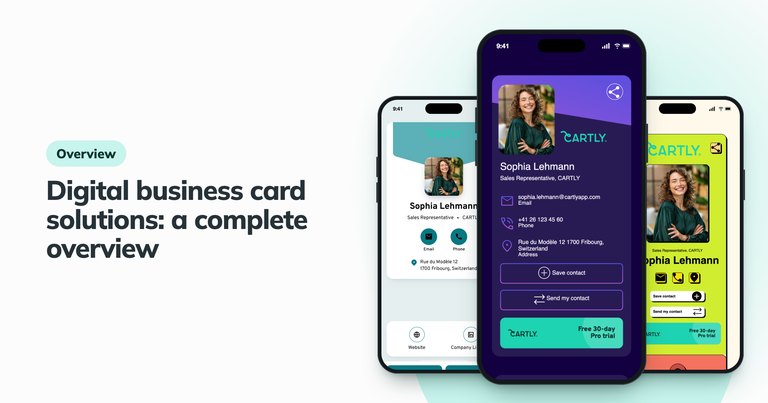
With a CARTLY digital business card, you never create or send a vCard yourself:
- Create your free account and fill in your profile: name, title, company, phones, email, address, website, social links, photo and logo.
- Your card is online with its own QR code and link.
- Your contact scans the code or opens the link, taps Save contact, and receives your vCard, up to date, with your photo.
- With Send my contact (Pro and Business plans), they can send you their details in return, so you collect contacts as well as giving yours.
When a detail changes, you edit the card once; the QR code and the link stay the same and the next vCard is correct. Pro and Business add the offline QR code, which carries the details inside the code for places with no signal, and bulk QR code downloads for a whole team. Our guide to the QR code business card covers printing the code on paper cards and using it at a booth.
Frequently asked questions
How do I create a vCard file for free?
Share a contact from your phone's Contacts app (iPhone or Android): the file it sends is a vCard. Or export from Google Contacts or Outlook. No paid tool is needed.
Which vCard version should I use?
3.0. It is read by iPhone, Android, Outlook, Google Contacts and macOS. Use 4.0 only if the receiving app asks for it.
Can I create a vCard from a spreadsheet?
Yes. Import the CSV into Google Contacts (Import accepts CSV), check the columns, then Export as vCard.
Can a vCard include a photo?
Yes, embedded or linked. Phones embed the photo when you share a contact. Leave it out when the vCard goes into a QR code.
Is a vCard QR code the same as a digital business card?
No. A vCard QR code holds fixed details inside the code. A digital business card is a live page: its QR code holds a link, the page can be updated, and the Save contact button generates the vCard on demand.
Skip the file handling: create your free digital business card and let your contacts save your details in one tap.