
How to roll out digital business cards across your company: a 7-step guide
From creating the account to the first contacts in your CRM: the seven steps to give every employee a digital business card, and what each one takes.
- 7 steps
- A few hours for a Business account
- Real platform screenshots

The 7 steps
Choose who runs it
HR, marketing, IT: appoint one or more administrators.
Set the design once
Template, fonts, colors and your company logo, on every card.
Organize teams and permissions
One team per department, site or brand, with fields that are editable, fixed or turned off.
Create the cards
Invite by email, or import in bulk from a CSV or Excel file (Business plan).
Choose how cards are shared
QR code and link for everyone; Apple and Google Wallet, email signature and bulk QR codes with the Pro and Business plans.
Send contacts to your CRM
CSV, VCF or Excel export, or sync through Zapier (Pro and Business plans).
Measure, then maintain
Statistics per card and per team; new hires and departures in a few clicks.
Each step in detail


1–2Admins
Clear ownership, one design
Start by deciding who administers CARTLY: HR for new hires and departures, marketing for the brand, a manager per team if needed. Several administrators can share the work.
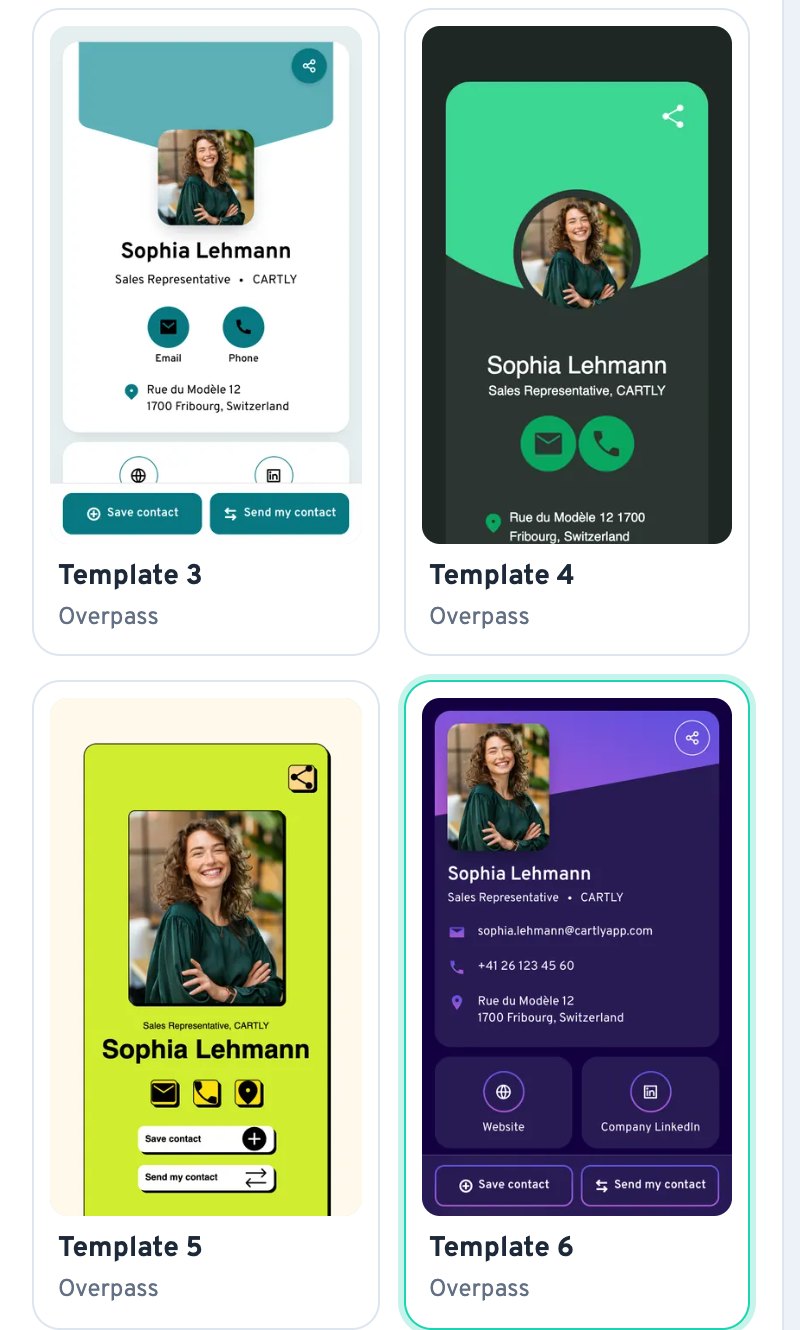
Then set the design once: template, fonts, colors, background and buttons, and your company logo on every card. With the Business plan, a custom design is available as an option.
- Multiple administrators
- Company logo on every card
- Custom design as an option (Business plan)
3Teams
Teams and per-field permissions
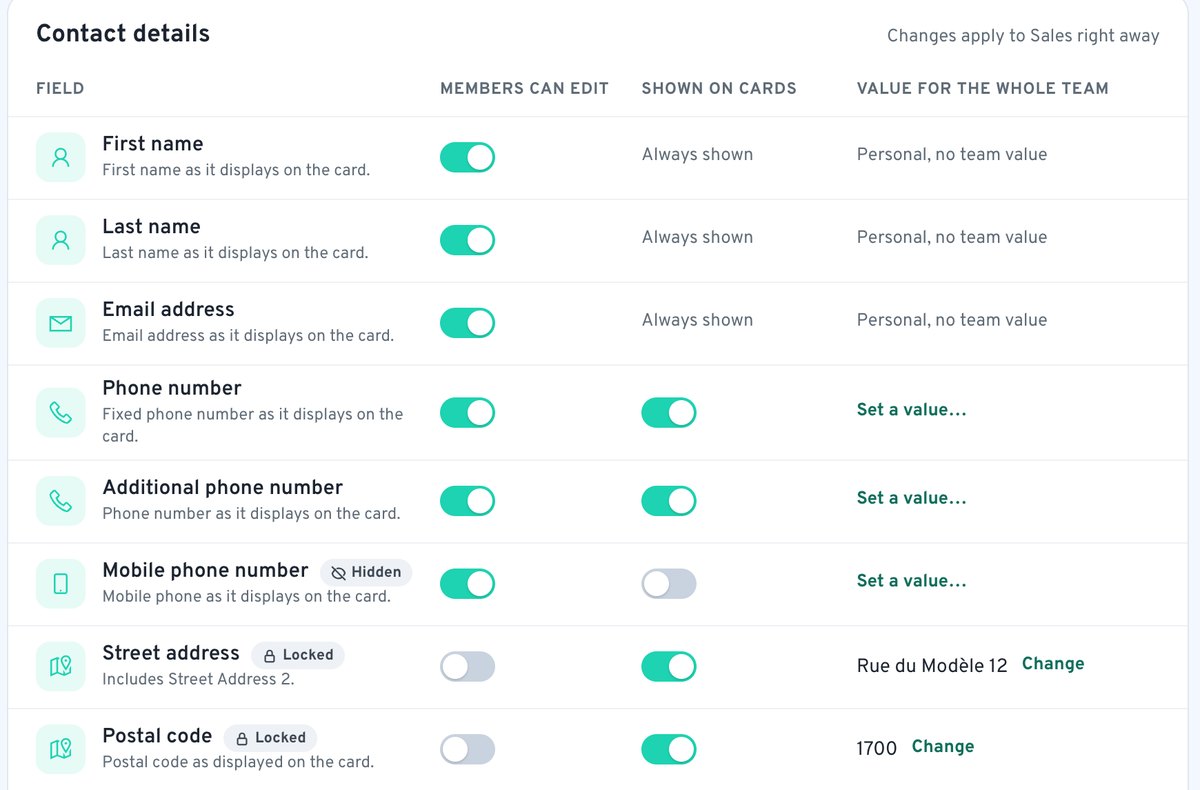
Create one team per department, site or brand. Each team has its own card design and banner (Pro and Business plans).
For each team and each field, decide whether it is editable by team members, fixed for the whole team (address, main number, logo) or turned off.
4Import
All your cards at once
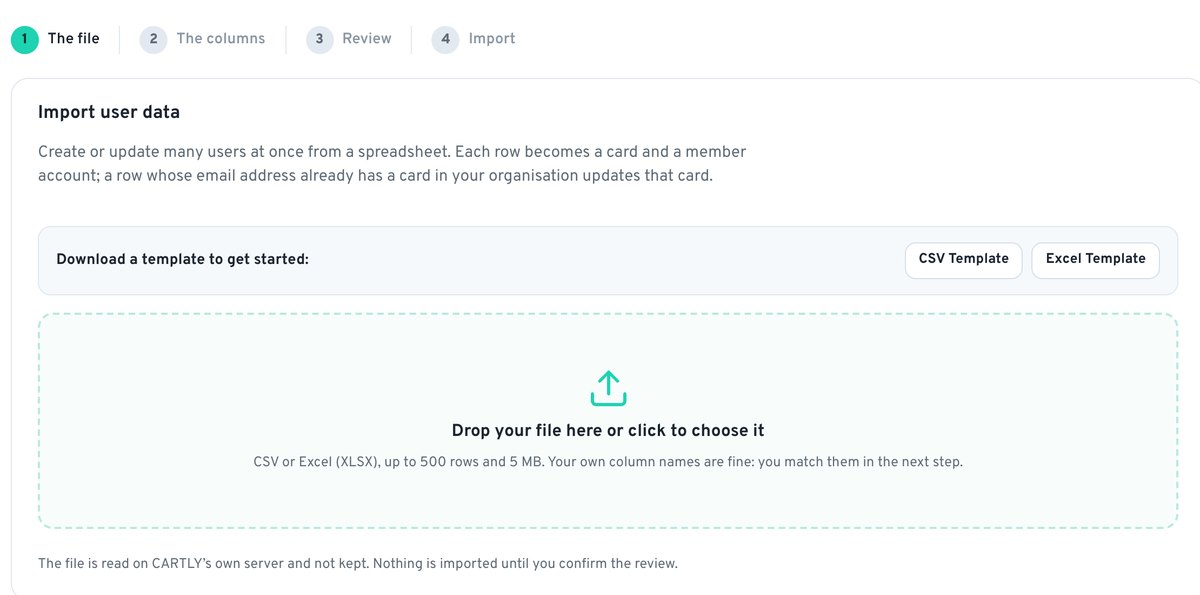
Invite your team members by email: each person receives their access and completes what you allow them to edit.
For large teams, import them from a CSV or Excel file: CARTLY creates or updates the cards in one operation (Business plan).
Explore: arrivals and departures
5–6Sharing
Share everywhere, and keep every contact
Every card can be shared by QR code or link. With the Pro and Business plans, it can also be added to Apple Wallet and Google Wallet and to an email signature for Outlook, Gmail and Apple Mail. The whole team’s QR codes download at once.
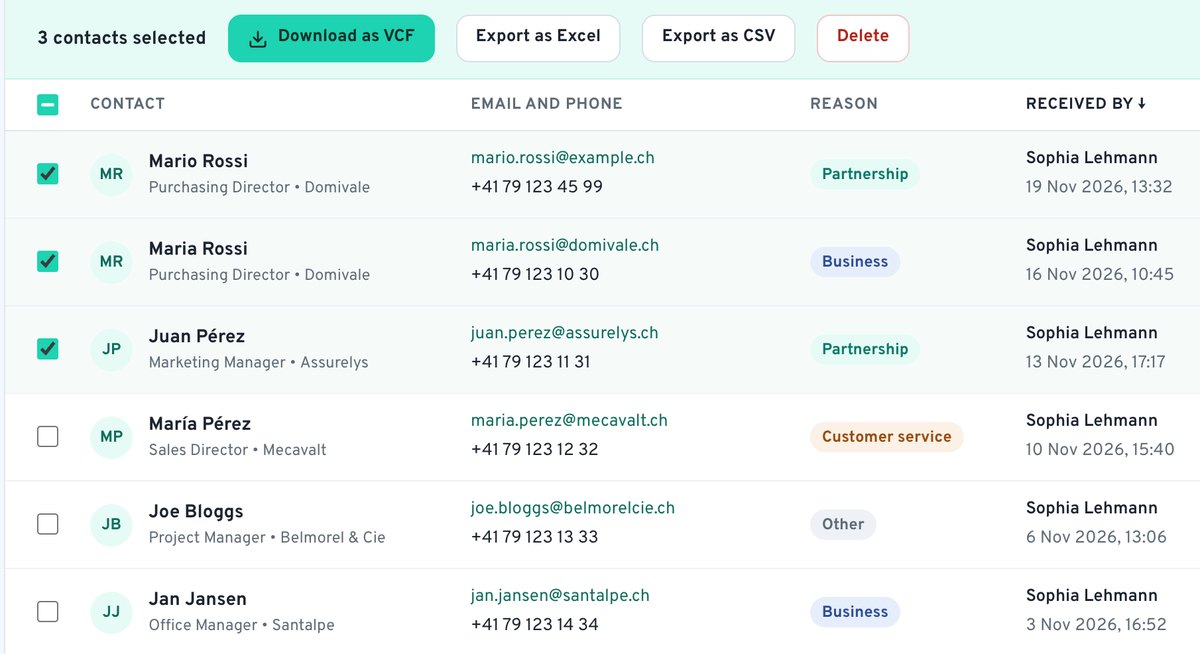
Collected contacts arrive in CARTLY with the name of the team member who met them. Export them as CSV, VCF or Excel, or sync them to your CRM through Zapier (Pro and Business plans).
7Tracking
Measure, then maintain
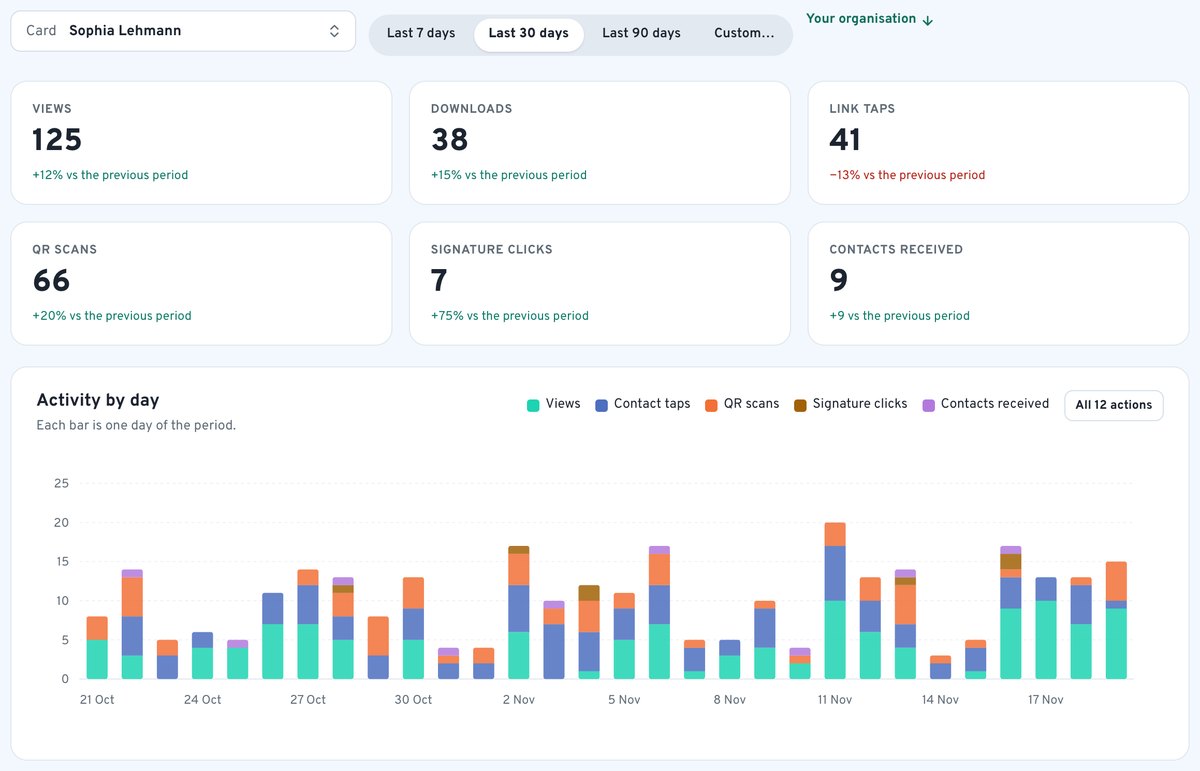
Statistics show each card’s views, QR code scans and contacts, and bring every card in the organization together in one table, filterable by team (Pro and Business plans).
After that, upkeep happens as you go: a new hire gets their card on day one, a job change is updated online, and a departure takes a few clicks.
How long does it take?
Creating the account takes a few minutes. For a Business account, allow a few hours from account creation until every team member has their card.
The rollout checklist
- Administrators appointed
- Design approved
- Teams created
- Permissions checked
- Team members imported or invited
- Email signatures installed
- Contacts connected to your CRM
- Statistics reviewed after one week
Frequently asked questions
How long does it take to equip a team?
A few minutes for the account; for a Business account, a few hours until every team member has their card.
Can team members edit their own card?
Yes, within the limits you set: for each team and each field, you decide whether it is editable, fixed or turned off.
What happens when someone leaves the company?
A departure is handled in a few clicks from the dashboard, with no extra orders or reprints. Their card can be reassigned to a new team member.
Can we follow our brand guidelines?
Yes: template, fonts, colors and your company logo apply to every card, and a custom design is available as an option with the Business plan.
Ready to equip your company?
Free 30-day Pro trial for up to 30 team members, no credit card required. For more than 30 cards, CARTLY Business scales to the whole company.